
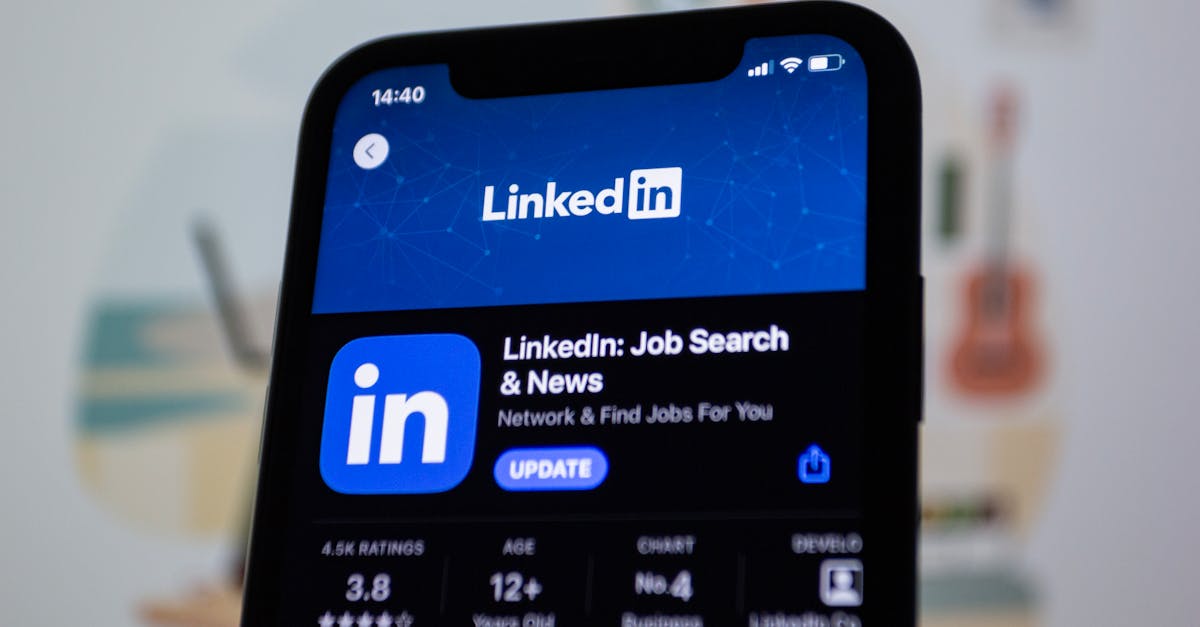
Ever been in the middle of a Netflix binge when your iPhone suddenly throws a fit and says “Update Requested”? It’s like your phone just decided to take a coffee break while you’re trying to catch up on the latest drama. This quirky little phrase can leave anyone scratching their head, wondering what exactly is going on behind the scenes.
In the world of iPhones, “Update Requested” is more than just a techy buzzword; it’s a sign that your device is trying to get its act together. Whether it’s a software update or a pesky app that needs some TLC, understanding this message can save you from unnecessary frustration. So, let’s dive into what “Update Requested” really means and how to tackle it like a pro, all while keeping your sanity intact.
Table of Contents
ToggleWhat Is Update Requested on iPhone?
“Update Requested” is a message that appears when an iPhone attempts to download a software update or an app update. This message signifies that the device is in the queue to receive the latest features or bug fixes. While this process is typically seamless, interruptions can occur, especially during high-demand usage times.
The iPhone displays this status when the software update’s request has been initiated but not yet completed. Users may encounter this message while trying to update an app from the App Store or during a system update. Network issues often contribute to delays in processing these updates.
To troubleshoot the “Update Requested” scenario, users can ensure a stable Wi-Fi connection. Restarting the iPhone frequently resolves minor glitches causing the delay. Checking for any ongoing Apple service disruptions also helps clarify whether the issue lies with the device or with Apple’s servers.
Updating app settings can provide smoother performance. Changing the app download settings to allow updates over cellular data can bypass Wi-Fi limitations in urgent situations. Users can also manually repeat the update or download process by tapping on the app in question and selecting the update option again.
Overall, users should remain patient while the update processes. If the message persists beyond a reasonable time, it may indicate a more significant issue requiring further steps, such as contacting Apple Support for assistance.
Causes of Update Requested
Several factors contribute to the “Update Requested” message on an iPhone. Identifying these causes can help users troubleshoot the issue more effectively.
Network Connectivity Issues
Network connectivity issues frequently trigger the “Update Requested” message. An unstable or slow Wi-Fi connection disrupts the communication between the iPhone and Apple servers. By confirming Wi-Fi stability, users can determine whether the network is the root cause. Checking the internet connection speed also offers insight into potential problems. If the Wi-Fi signal appears weak, switching to another network may resolve the situation. Users should also consider restarting the router to restore connectivity. Cellular data may serve as a temporary solution if Wi-Fi limitations persist.
Device Storage Limitations
Device storage limitations often play a significant role in triggering update requests. An iPhone requires sufficient storage space to download software updates and app updates. Users should check available storage by navigating to Settings, then General, and selecting iPhone Storage. If storage is low, users can delete unnecessary apps, photos, or large files to free up space. Managing storage proactively prevents interruptions when downloading updates. Clearing cache from apps can also help optimize storage usage. Lack of storage directly impacts the device’s ability to install updates and maintain overall performance.
How to Resolve Update Requested on iPhone
Resolving the “Update Requested” message on an iPhone involves several straightforward steps. Users can follow these methods to address the issue effectively.
Restart Your iPhone
Restarting an iPhone often resolves minor glitches that can lead to update issues. To restart, press and hold the side button alongside the volume button until the slider appears. Then, slide to power off. Once the device shuts down, wait a few moments before powering it back on. This simple action can refresh system processes and restore the connection to the update server, increasing the chances of successful software updates.
Check Network Settings
Network settings play a crucial role in the update process. First, confirm that the device is connected to a stable Wi-Fi network. A slow or unstable connection can cause interruptions in the update request. Going to Settings, then Wi-Fi allows users to select a different network if necessary. Additionally, toggling Airplane Mode on and off can reset network connections quickly. Ensuring that the iPhone is within range of the Wi-Fi router can further improve connectivity.
Free Up Storage Space
Insufficient storage space can prevent updates from installing successfully. Users should check their available storage by going to Settings, then General, and selecting iPhone Storage. To free up space, deleting unused apps, photos, or videos can significantly help. Enabling the “Optimize Storage” option for Photos can also assist in managing space effectively. Having at least 1 GB of free space typically facilitates smoother installations of updates on the device.
Preventing Future Update Issues
Addressing update issues on an iPhone requires proactive measures. Users can significantly reduce the chances of encountering the “Update Requested” message through regular software maintenance and staying current with updates.
Regular Software Maintenance
Conducting regular software maintenance helps keep the iPhone running smoothly. Clearing out cache data from apps minimizes performance issues. Users should also review app permissions and settings to ensure they align with the current needs. Regularly checking storage levels allows users to spot potential problems before they impact updates. Efficiently managing storage by removing unused apps, photos, or videos supports better update installations. Additionally, users can reset network settings periodically to enhance connectivity.
Keeping Your iPhone Updated
Keeping an iPhone updated is essential for avoiding future update problems. Regularly checking for system and app updates ensures users benefit from the latest features and fixes. Activating automatic updates simplifies this process, as the iPhone will handle updates in the background. Users should verify that their device is connected to a reliable Wi-Fi network during updates. Ensuring sufficient storage space remains available also bolsters the update experience. Utilizing a charging source during updates prevents interruptions caused by low battery levels.
Dealing with the “Update Requested” message on an iPhone can be frustrating but understanding its implications helps users navigate the situation more effectively. By ensuring a stable Wi-Fi connection and managing device storage, users can significantly reduce the chances of encountering this issue.
If the message persists despite troubleshooting efforts, reaching out to Apple Support is a wise step. Staying informed about regular maintenance and proactive measures ensures smoother updates in the future. With a little patience and the right strategies, users can enjoy a seamless experience while keeping their iPhones updated and functioning optimally.